Removing Titles
On a Microsoft Webpage in respect to regular-expressions there is an example of removing titles. In this program I'm going to show you how to remove titles such as (Mr., Mrs., Miss, or Ms.). There are many situations where titles are not needed or even wanted for things such as for a mailing list.
So, let's say we have the names used from the Microsoft website; Mr. Henry Hunt, Ms. Sara Samuels, Abraham Adams and Ms. Nicole Norris. Here's how we would achieve that.
1. Add the names to the testing area (12) (Mr. Henry Hunt, Ms. Sara Samuels, Abraham Adams and Ms. Nicole Norris).
2. Add the titles one each per line with the period in the examples area (1), click the Remove left spacing checkbox (7) and then "Generate Regex" (5).
3. Now just click the "Test Removal" button (14).
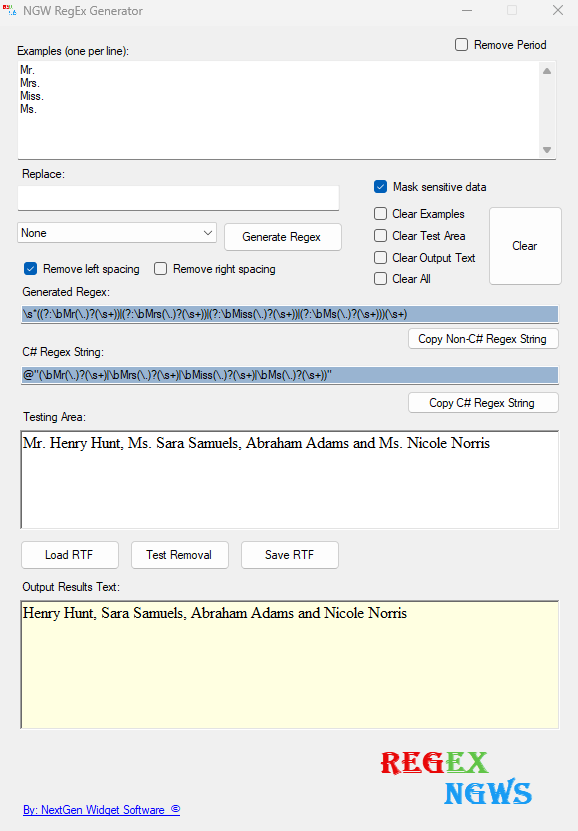
As you can see, all of the Titles are gone and the spacing was removed as well. There is actually an easier way to do this and that is simply use the drop-down arrow from the combo box and select "All Titles".
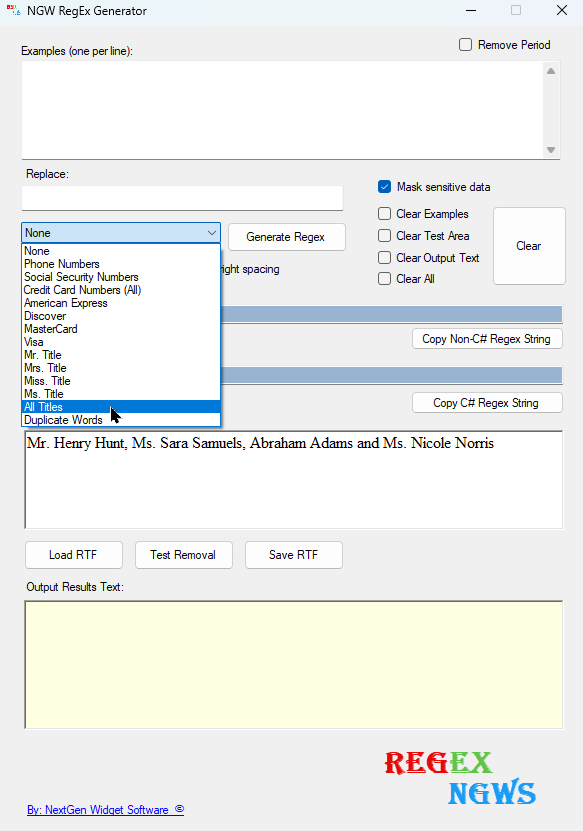
Here's the results of the drop-down then just click "Remove left spacing" check box (7) and "Test Removal" button (14). The selection is case-sensitive.
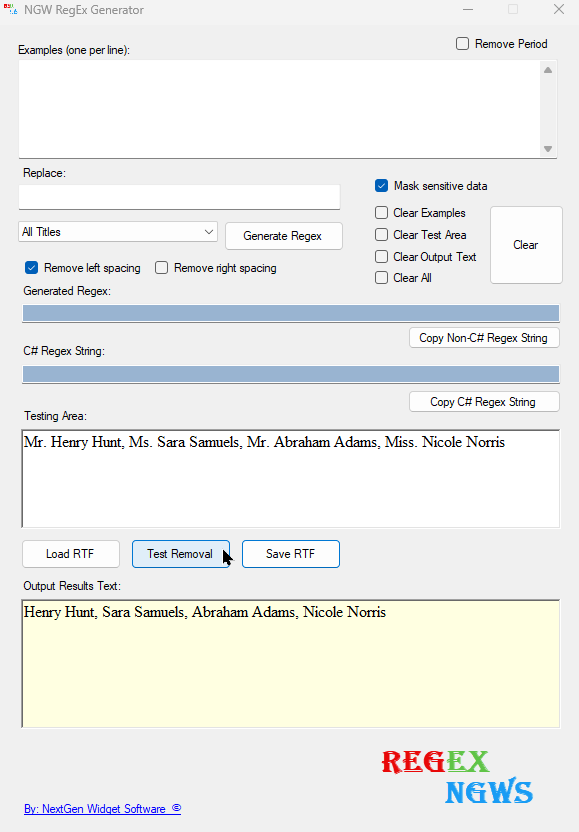
NOTE: This same action of removing the Titles can be done with the Predefined drop-down. Before using the Predefined drop-down make sure that nothing is in the examples area because once you select any Predefined drop-down it will clear the examples text area. However, if you for some reason want to place some text back in the examples area in between the selection and clicking the test removal. A pop-up box will let you know that it will either be removed or ignored depending on what you select.
When using the Predefined drop-down the "Generate Regex" button is disabled. To remove all of the Titles you simply select "All Titles" in the drop-down and click the "Test Removal" button.